By George Crump
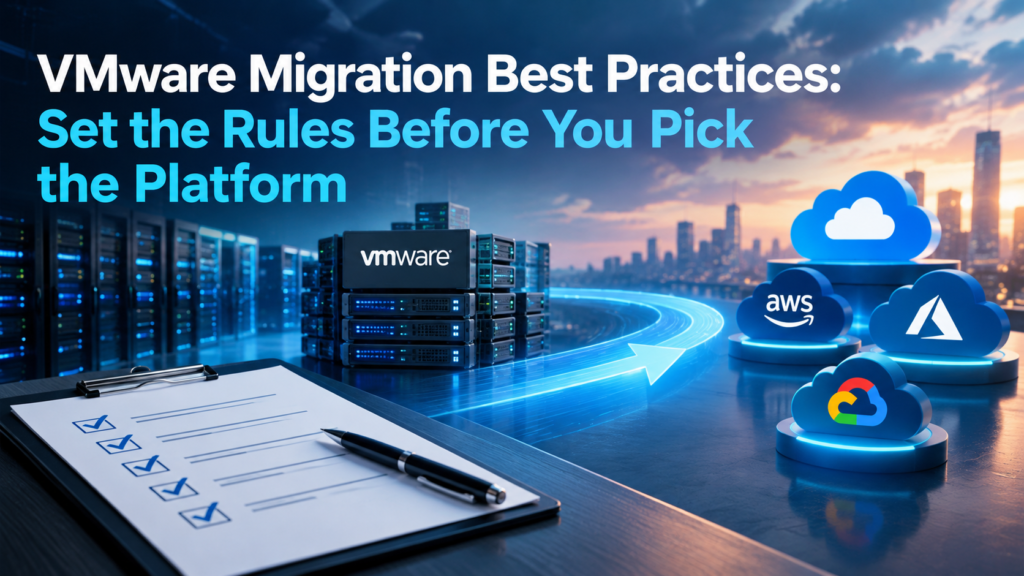
As part of their research into selecting a VMware alternative, IT must consider the new platform’s ability to move the organization off the old one. Before comparing migration capabilities, though, IT should establish best practices for the move, then see which potential VMware replacement helps it meet them. Each of the seven practices below doubles as a test for the migration function of any platform on your short list.
Think in Workloads, Not VMs
The first best practice is to think in terms of workload migration instead of VM migration. You don’t have hundreds of VMs to move. You have a dozen or so workloads. In IT, we use the word “workload” to describe many different use cases, so for our purposes, a workload is a group of interrelated VMs and the dataset that must travel with them.
Score Each Workload for Complexity
The second best practice is to score each workload. Once you have identified the workloads in your environment, rank them in order of complexity. Four factors increase the complexity score.
Capacity requirements. The amount of data in a workload affects its overall transfer time.
Acceptable outage. Yes, no one wants any downtime, but every VM migration requires at least a reboot, and depending on the VMware alternative’s migration function, the outage can run considerably longer. A workload the business can take offline for only a few minutes scores higher than one that can sit idle over a weekend.
Application interdependency. Are the VMs within the workload tightly intertwined? A Microsoft Windows cluster between two VMs is a good example.
Unique networking arrangements. Look for a unique networking arrangement between the VMs in the workload, or between the workload and other workloads.
Seed the Simplest Workloads First
The third best practice is seeding, the initial copy of a workload’s VMs and data onto the new platform. Start with the workloads that score lowest in complexity. If the alternative’s migration function allows for it, migrate one workload at a time. If the function can create this initial seed without disrupting the running VM, start transferring the next workloads as you begin testing the first ones. As you work up the workload stack, capacities grow and transfer times increase, so starting those transfers during testing of the earlier ones is a good idea.
Go Beyond One Test Case
The fourth best practice is to test more than one case. Most organizations stand up one instance on the VMware alternative and have one person test it. At a minimum, have multiple people test it. For hardcore testing, use AI, preferably a local model that keeps workload data inside your environment, to test the workload alongside your own staff. AI can test 24 hours a day without getting bored.
A better scenario is to use multi-tenancy, or virtual data centers, to create multiple instances of the migrated workload so multiple IT and workload stakeholders, plus AI instances, can participate in the testing. This eliminates the need to create specific networking rules, which slow down testing and never exactly replicate the production environment.
Plan the Cutover
The fifth best practice is planning the cutover time. A cutover will happen regardless. Even the best migration function requires powering off the VMware VM and powering on the alternative VM. Plan for it. The first set of workloads probably won’t make much difference, but as you move up the complexity scale, the cutover window starts to matter a great deal.
One requirement of a VMware migration function is how much it helps you reduce that cutover window. Look for capabilities like:
- Fast transfers from the VMware environment
- Incremental updates that resync only the data that changed since the last pass
- Maintaining the VMware version of the workload on the new platform as a backup
Clean Up After the Cutover
The sixth best practice is post-migration cleanup. Once the workload is running on the new platform, work remains. Every migrated VM still has VMware Tools installed, and it needs the new hypervisor’s guest drivers. Remove the first and install the second. Leftover tools and missing drivers cause performance and stability problems that look like platform issues, and you’ll waste time chasing them.
Then check the network. Make sure each VM came up on the right network with the right IP address, and that the users and other workloads that depend on it can still reach it. Workloads with unique networking arrangements, the ones that scored high on complexity, need the closest look. Build these steps into the plan for every workload, and give credit to a migration function that handles some of them for you.
Keep a Failsafe
The last best practice is having a failsafe in case something goes wrong after testing. We’ve all been there. You tested something relentlessly, and a day or two after you put it in production, it breaks. Having that backup in a known good state is key, and the VMware version maintained on the new platform from the cutover step fills that role. Also have on-platform snapshots, independent from the backup, for quick rollback.
Turn the Practices Into Your Evaluation Checklist
Each of these practices puts demands on the VMware alternative’s migration function. It needs to copy workloads as they run, move data quickly, isolate workloads for parallel testing, resync only what changed, help with cleanup after the cutover, and keep both the VMware copy and on-platform snapshots ready for rollback. Score each platform on your short list against those demands. The platform that helps you follow all seven practices will move your most complex workloads with the fewest surprises.
How VergeOS Supports These Practices
VergeOS from VergeIO puts compute, storage, and networking in a single codebase, and its VMware migration service aligns with each of these practices. It copies the full VM as the source keeps running on VMware, so IT seeds the simplest workloads first and starts the larger transfers as testing begins. VergeOS 26.2 makes those transfers faster. After the first full copy, each pass sends only the changed data, shrinking the final cutover to a short resync, a power-off, and a power-on.
VergeOS virtual data centers (VDCs) cover the testing practices. Each workload gets its own VDC and network space, and IT clones that VDC so staff, stakeholders, and AI models can test separate copies in parallel. For the failsafe, the VMware data stays on VergeOS storage after the import, and independent snapshots built on VergeFS global inline deduplication give IT rollback points with minimal capacity impact.
To see these capabilities live, join Aaron Richman and Dave Vincent of VergeIO on Thursday, October 22, at 1:00 PM ET for a demonstration of VergeOS 26.2. The session covers faster VMware migration and Microsoft Failover Clustering for Windows workloads, a tightly intertwined workload that scores high on complexity. Register for the VergeOS 26.2 webinar.